Showing posts with label Weblogic. Show all posts

Tuesday, 15 May 2012

How to UNDEPLOY SOA Composite when soa-infra is down


How to Un-Deploy a SOA composite when soa-infra is down in Oracle Fusion Middleware 11g:
We deployed a BPEL component on our SOA managed server which lead to server crash. Even after trying to restart the server, the soa servers did not came up.
We were in a situation in which we were :
  • Unable to un-deploy the component which led to server crash
  •  Unable to start the servers.
In such a situation, we need to delete the BPEL component from the file system of the server(from the physical location)
SOA Managed servers have crashed. 

To recover from the issue, please start up the Admin Server of the domain and execute the below steps:

  • Copy the attached ShareSoaInfraPartition.ear(mail to amitja07@gmail.com for the attachement) file to the below location of the server.


$ cd MW_HOME/oracle_common/common/bin


Now give the below command:

$ ./wlst.sh
  • Once the wlst is initiated enter the below command:
    • connect()
    • After entering the above command, you would be prompted to enter your username, password and url. Please provide the details in the below format
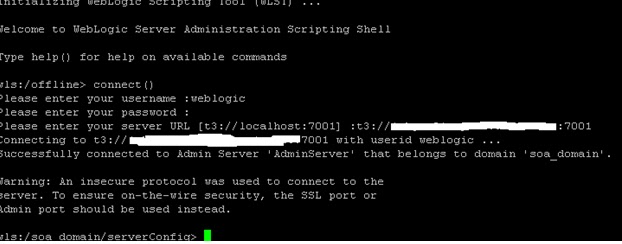

  • After entering the above credentials, wlst would connect to the admin server of the domain.
  • Now run the below command to deploy the ShareSoaInfraPartition.ear
    • deploy('ShareSoaInfraPartition','ShareSoaInfraPartition.ear',upload='true')

  • After the deployment is done, run the below command
    • exportMetadata(application='ShareSoaInfraPartition',server='AdminServer',toLocation='/dbdump/OraSOAS/Oracle/ServerDeployedComposites',docs='/deployed-composites/deployed-composites.xml')
  where server='AdminServer' is the name of the admin server
  toLocation='/dbdump/OraSOAS/Oracle/ServerDeployedComposites' is a location on your physical server at which the deployed-composites.xml file would get created


  • Running the above command would create a folder named deployed-composites at the toLocation (which was given in the command). This folder would contain deployed-composites.xml
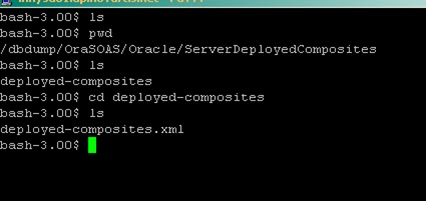


  • Open the deployed-composite.xml file and delete the entry  of the composite  which needs to be deleted .
  • After deleting  the entry, run the below command:
    • importMetadata(application='ShareSoaInfraPartition',server='AdminServer',fromLocation='/dbdump/OraSOAS/Oracle/ServerDeployedComposites',docs='/deployed-composites/deployed-composites.xml')
  •    After running the above command, please restart the servers (both Admin and Managed Servers)
  •   The component would be deleted from the servers.

Reference : 1380835.1 from the Oracle Support Portal

Tuesday, 17 April 2012

How to Enable 1 way-SSL in Weblogic Server


Steps for configuring Inbound SSL in FMW

Scenario:
We have a Development Environment which has One Admin Server and three managed Server.
Admin Server runs on port 7001.
Managed Server1 (soa_server1) listens on port 8001
Managed Server2 (osb_server1) listens on port 8011
Managed Server3 (bam_server1) listens on port 9001

We need to configure osb_server1 to listen on ssl port 8012 using Custom Certificate to secure our webservices.
This certificate will be sent to business providers who will import it in their trusted Keystore.
Only the business partners who have this certificate imported in their trust store should be successfully able to invoke the webservice else they should get SSLHandshakeException

Steps Followed to generate a web service certificate:
1. CREATING A PRIVATE KEY IN KEY STORE:
<JAVA_HOME>\bin\keytool.exe -keystore <Path to a (new) key store> -storepass <(New) key store
password> -genkey -alias <Arbitrary Name> -keyalg RSA -dname <DN of certificate>

Concrete Example:
$ keytool -keystore  “/Oracle/Middleware/wlserver_10.3/server/lib/server_keystore.jks" -storepass "weblogic1" -genkey -alias "webservice_nexus" -keyalg RSA –dname "CN=fus@isdev,OU=webServices,OU=pkiObjects,DC=Nexus,DC=com"

2. CREATING A CERTIFICATE SIGNING REQUEST (CSR):
<JAVA_HOME>\bin\keytool.exe -keystore <Path to the key store> -storepass <Key store password>
-certreq -alias <Alias name from private key> -keypass <Password of private key> -file <Path
to CSR file to be created>

Concrete Example:
$ keytool  –keystore  "/Oracle/Middleware/wlserver_10.3/server/lib/server_keystore.jks " -storepass "weblogic1" -certreq -alias "webservice_nexus" -keypass "weblogic1" -file "/Oracle/Middleware/wlserver_10.3/server/lib /webService.csr"

3. GENERATING A CERTIFICATE:   
Submit the CSR file created in the last step to any of the trusted Certificate Authority.certificate authority will use a CSR to create your SSL certificate, but it does not need your private key. You need to keep your private key secret.
Download the certificate on the local hard drive.

4. INSTALLING WEB SERVICE CERTIFICATE IN KEY STORE:
<JAVA_HOME>\bin\keytool.exe -keystore <Path to the key store> -storepass <Key store password>
-import -alias <Alias name from private key> -keypass <Password of private key> -file <Path to
CER file containing the WSC>

Concrete Example:
$ keytool -keystore "/Oracle/Middleware/wlserver_10.3/server/lib/server_keystore.jks" -storepass "weblogic1" -import -alias "webservice_nexus" -keypass "weblogic1" -file "/Oracle/Middleware/wlserver_10.3/server/lib/Certificates/webservice_nexus.cer"

After Adding the certificate in the keystore, you can list the certificate by giving the following command:

5. LISTING THE CERTIFICATE:
<JAVA_HOME>\bin\keytool.exe –v –list -keystore <Path to the key store> -storepass <Key store password>

Concrete Example:
$ keytool –v –list –keystore server_keystore.jks 


After successful creating and adding the certificate in the keystore, we need to configure the server to use the custom keystore which we created.

  •          Login to the admin Console.
  •          Enter admin usename and password
  •          In the Home Page, go to Servers  --> osb_server1
  •          Go to keystores in the Configuration tab
o   Change the keystore to Custom Identity and Standard Java Trust
o   Enter the following details for Identity Keystore:
§  Custom Identity Keystore : /Oracle/Middleware/wlserver_10.3/server/lib/server_keystore.jks
§  Custom Identity Keystore Type: JKS
§  Custom Identity Keystore Passphrase: <password for keystore>
§  Confirm Custom Identity Keystore Passphrase: <password for keystore>
o   Save all the configurations.

  •         Now go to SSL in Configuration Tab
o   Enter the details for Private Key Alias : webservice_nexus
o   Enter the passphrase : <password for private key>
o   Go to advance, In hostname verificate make it NONE(if not already so).
o   Save all the changes made.

  •          Now go to General in Configuration Tab.
  •         Check the SSL Listen Port Enabled box
  •          SSL Listen Port should be 8012, if not enter it.
  •          Save all the changes.
  •          Finally restart the osb_server1.

Tuesday, 24 January 2012

Configuring Node Manager for High Availability of Servers

Node Manager is a WebLogic Server utility that enables you to start, shut down, and restart Administration Server and Managed Server instances from a remote location. Although Node Manager is optional, it is recommended if your WebLogic Server environment hosts applications with high availability requirements.

A Node Manager process can automatically monitor, shutdown, and restart only those Managed Servers that it started. It cannot provide these services for Managed Servers booted directly from the command line.

Configure the Node Manager to connect to the Weblogic domain:
If you are connecting the node manager to the domain for the first time, the Admin Server of the domain should be up and running.
To start the Admin Server, Navigate to the below location:

$ cd MWHOME/user_projects/domains/soa_domain/bin
To start the server, give the below command:

$ ./startWebLogic.sh &

This would start the Admin Server as a background process. The Admin Server would be started once the console shows “Running Mode”
  • Once the Admin Server is started, open a new session in order to connect to the domain through the Node Manager
  • Navigate to “MWHOME/wlserver_10.3/common/bin”

Run the wlst.sh as shown below


  • The next step is to connect to the domain on which the Admin Server is up and running. To connect to the domain please use the syntax as below:
    •  connect('weblogic','<password>','t3://<host name>:<Port on which admin server is running>')
  • After connecting to the Admin Server, we need to enroll the domain with the nodemanager. To enroll the node manager use the below syntax:
    • nmEnroll('<path to the domain>')

Procedure to start and stop the servers:
  • Once the domain is enrolled with the node manager, the next step is to start/stop the servers using the wlst and node manager
  • To connect to the node manager, follow the below steps:
    • Navigate to MWHOME/ wlserver_10.3/common/bin
  • Run the wlst.sh
  • Use the below syntax to connect to the node manager
    • nmConnect('weblogic','<password>','<host name>','<node manager port no.>','<domain name>','<path to the domain>')
After successfully connecting to the node manager, we will be able to start/stop the servers.
We can use various commands to manage the servers using wlst and node manager as mentioned below:

1.       nmServerStatus('<Server Name>'):This would display the current status of the server as:

  • Running
  • Shutdown
  • Failed Not Restartable
  • Unknown
2.  nmStart('<Server Name>') : This would start the server.

3.  nmKill('<Server Name>'): This would shutdown the server.

In this way we can configure Node Manager for high availabilty of weblogic server.
We can even write Custom Scripts using python/jython which is supported in weblogic for managing server.